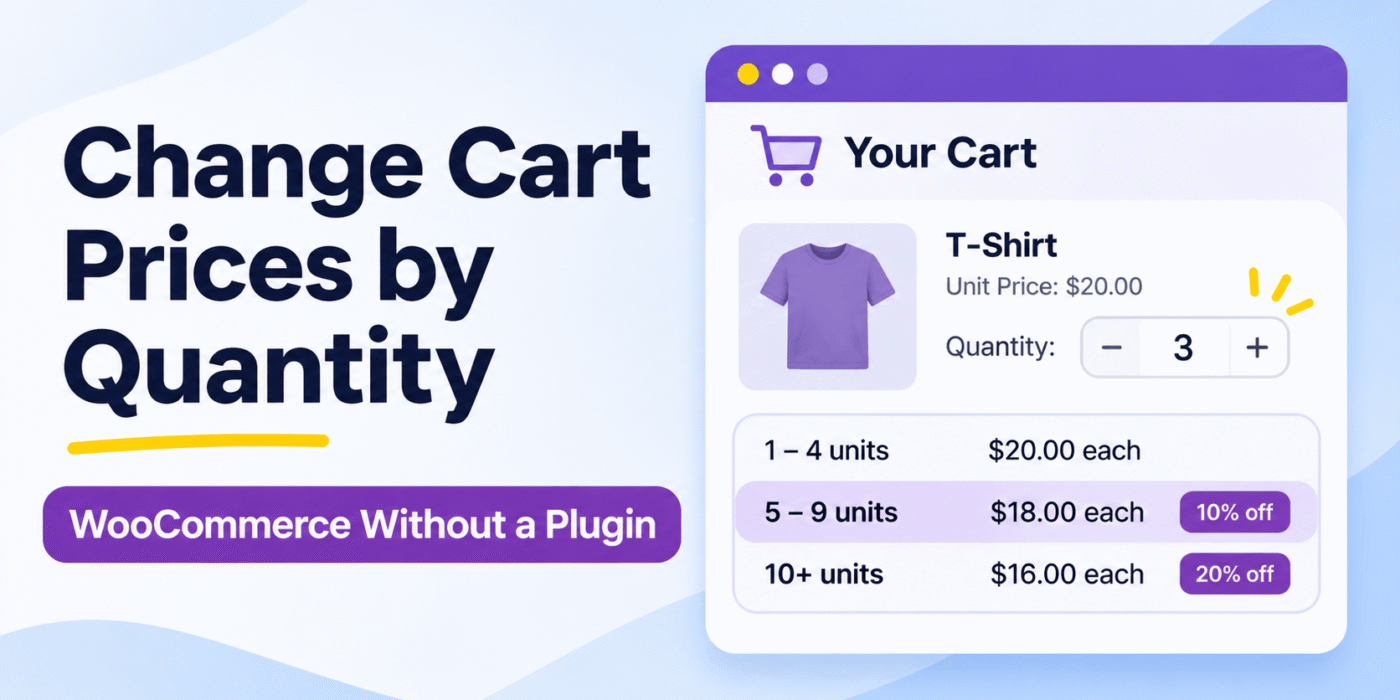
Sometimes a WooCommerce store needs to offer different product prices based on the quantity a customer adds to the cart. For example, a store may offer a bulk discount when a customer purchases 50 or more units of a particular product.
You can implement this pricing rule without installing an additional plugin. WooCommerce provides the woocommerce_before_calculate_totals action, which allows you to change cart item prices before WooCommerce calculates the cart totals.
In this tutorial, we will use this hook to apply quantity-based discounts to a specific product. You can also define multiple quantity levels with different discount percentages.
How Does Quantity-Based Pricing Work in WooCommerce?
Suppose a product has a regular price of $50 per unit. You want to reduce its price when customers purchase larger quantities.
For example, you can define the following discount rules:
- 1 to 100 units: No quantity discount.
- 101 to 1,000 units: 50% discount on the unit price.
- 1,001 units or more: 10% discount on the unit price.
The discount percentages and quantity thresholds are examples. You can change them according to your store’s pricing requirements.
Use the woocommerce_before_calculate_totals Hook
WooCommerce provides the woocommerce_before_calculate_totals action to modify cart item prices before calculating totals.
You can access each cart item, check its product ID and quantity, calculate the discounted unit price, and update the product price using set_price().
Add the following code to your child theme’s functions.php file or a custom plugin:
/**
 * Apply quantity-based discounts to a specific WooCommerce product.
 */
function geeker_quantity_based_product_price_callback( $cart ) {

    // Do not run in the admin area, except during AJAX requests.
    if ( is_admin() && ! defined( 'DOING_AJAX' ) ) {
        return;
    }

    // Prevent repeated price changes during the same request.
    if ( did_action( 'woocommerce_before_calculate_totals' ) > 1 ) {
        return;
    }

    // Product ID for which the discount should apply.
    $target_product_id = 123;

    // Quantity thresholds and discount percentages.
    $quantity_threshold_1 = 101;
    $discount_1           = 50; // 50% discount.

    $quantity_threshold_2 = 1001;
    $discount_2           = 10; // 10% discount.

    foreach ( $cart->get_cart() as $cart_item_key => $cart_item ) {

        $product_id = $cart_item['product_id'];
        $quantity   = $cart_item['quantity'];

        // Apply the discount only to the selected product.
        if ( $product_id !== $target_product_id ) {
            continue;
        }

        // Get the current product price.
        $original_price = (float) $cart_item['data']->get_price();

        if (
            $quantity >= $quantity_threshold_1
            && $quantity < $quantity_threshold_2
        ) {

            $discounted_price = $original_price * ( 1 - ( $discount_1 / 100 ) );

            $cart_item['data']->set_price(
                round( $discounted_price, 2 )
            );

        } elseif ( $quantity >= $quantity_threshold_2 ) {

            $discounted_price = $original_price * ( 1 - ( $discount_2 / 100 ) );

            $cart_item['data']->set_price(
                round( $discounted_price, 2 )
            );
        }
    }
}
add_action(
    'woocommerce_before_calculate_totals',
    'geeker_quantity_based_product_price_callback',
    9999
);
Replace 123 with the product ID for which you want to apply the discount.
How the Code Works
Let’s look at the important parts of the code:
1. Select the Product
$target_product_id= 123;
This variable identifies the product that should receive the quantity-based discount. Other products in the cart will not be affected by this rule.
2. Define Quantity Thresholds
$quantity_threshold_1 = 101;
$discount_1           = 50;

$quantity_threshold_2 = 1001;
$discount_2           = 10;
These variables define when each discount should apply. In this example, the first discount applies to quantities from 101 to 1,000, while the second applies to quantities of 1,001 or more.
3. Calculate the Discounted Price
$discounted_price = $original_price * ( 1 - ( $discount_1 / 100 ) );

$cart_item['data']->set_price(
    round( $discounted_price, 2 )
);
The code calculates the reduced unit price and updates the cart item’s product price. WooCommerce then uses that price when calculating the cart totals.
Example of Quantity-Based Pricing
Assume the product price is $50 per unit. With the example discount rules, the price calculation will look like this:
- 50 units: $50 per unit, because the first discount starts at 101 units.
- 150 units: $25 per unit after a 50% discount.
- 1,200 units: $45 per unit after a 10% discount.
These examples show the unit price after applying the relevant discount, before taxes, shipping, or other cart adjustments.
Important Notes
- Discount rules: The example uses the thresholds and percentages shown in the code. Change them to match your pricing policy.
- Product variations: WooCommerce stores variation IDs separately. If you want the discount to apply to a particular variation, you may need to check
$cart_item['variation_id']instead of only checking the parent product ID. - Sale prices: The example uses the current product price returned by
get_price()as its starting price. This may be a sale price if the product is on sale. - Repeated calculations: The
did_action()check prevents the callback from applying the discount repeatedly during the same request. Test cart updates and AJAX-based cart interactions with your theme and plugins. - Cart validation: This code changes the cart item price. It does not enforce a minimum purchase quantity. If you also need quantity restrictions, see our guide on setting minimum and maximum product quantities in WooCommerce.
You can learn more about WooCommerce cart and pricing hooks in the official WooCommerce code reference.
Conclusion
You can change WooCommerce cart prices based on product quantity without installing an additional plugin. The woocommerce_before_calculate_totals action lets you inspect cart items, apply discount rules, and update product prices before WooCommerce calculates the totals.
Use the product ID, quantity thresholds, and discount percentages to create pricing rules that match your store’s needs. Test the changes with different quantities, product variations, sale prices, and cart updates before using the code on a live store.