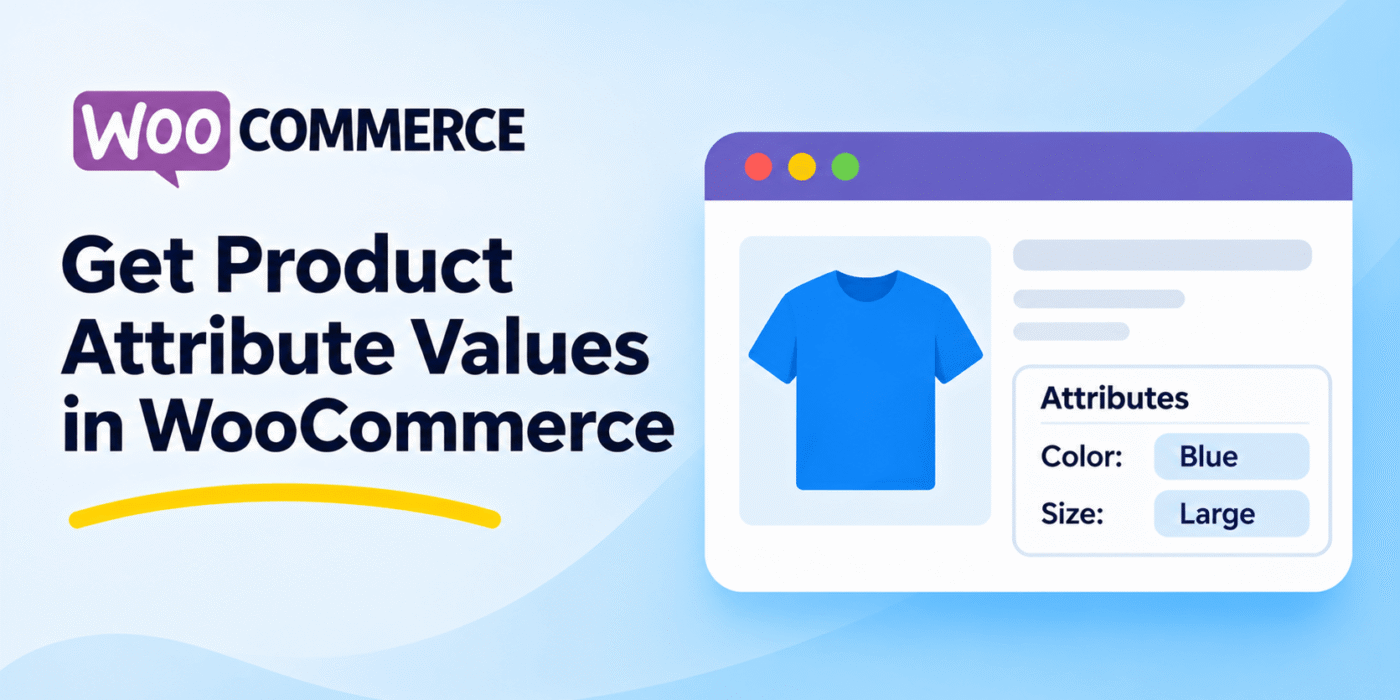
WooCommerce product attributes allow you to store additional information about products, such as size, color, material, weight, and other characteristics. These attributes are useful for displaying product details, creating product filters, and managing variable products.
If you are developing a custom WooCommerce feature, you may need to retrieve product attribute names and values programmatically. WooCommerce provides several methods that make it easy to access this information using PHP.
In this tutorial, we’ll explain how to get product attributes, retrieve their values, and handle both global and custom product attributes.
1. Get the WooCommerce Product Object
Before retrieving product attributes, you need to get the WooCommerce product object. You can use the wc_get_product() function and pass the product ID.
$product_id = 123;

$product = wc_get_product( $product_id );

if ( ! $product ) {
    return;
}
Replace 123 with the actual product ID. The function returns a WooCommerce product object if the product exists.
2. Check Whether a Product Has Attributes
Once you have the product object, you can use the has_attributes() method to check whether the product has any attributes assigned.
if ( $product->has_attributes() ) {
    // Product has attributes.
} else {
    // Product does not have attributes.
}
This check is useful when you want to avoid processing an empty attribute list.
3. Get All Product Attributes and Their Values
WooCommerce provides the get_attributes() method to retrieve the attributes assigned to a product.
It returns an array of WC_Product_Attribute objects. You can loop through these objects to get the attribute name and its available options.
$product_id = 123;

$product = wc_get_product( $product_id );

if ( $product && $product->has_attributes() ) {

    $attributes = $product->get_attributes();

    foreach ( $attributes as $attribute ) {

        $attribute_name = $attribute->get_name();
        $attribute_options = $attribute->get_options();

        echo '<p>';
        echo esc_html( $attribute_name );
        echo ': ';

        foreach ( $attribute_options as $option ) {
            echo esc_html( $option ) . ' ';
        }

        echo '</p>';
    }
}
There is an important difference between global attributes and custom product attributes:
- Global attributes: Their options are stored as taxonomy term IDs. For example, a global Color attribute may use the taxonomy
pa_color. - Custom attributes: Their options are stored directly as text values on the product.
Therefore, the example above may return term IDs instead of readable attribute values when working with global attributes. The next sections show how to retrieve the actual values correctly.
4. Get Readable Values of Global Product Attributes
WooCommerce stores global product attributes as taxonomies. Their taxonomy names usually start with pa_.
For example, if you have a global attribute named Color, its taxonomy name might be:
pa_color
You can use the wc_get_product_terms() function to retrieve the readable term names associated with a product.
$product_id = 123;

$product = wc_get_product( $product_id );

if ( $product ) {

    $attributes = $product->get_attributes();

    foreach ( $attributes as $attribute ) {

        if ( $attribute->is_taxonomy() ) {

            $attribute_name = $attribute->get_name();

            $attribute_values = wc_get_product_terms(
                $product_id,
                $attribute_name,
                array(
                    'fields' => 'names',
                )
            );

            echo '<p>';
            echo esc_html( wc_attribute_label( $attribute_name ) );
            echo ': ';

            if ( ! is_wp_error( $attribute_values ) ) {
                echo esc_html( implode( ', ', $attribute_values ) );
            }

            echo '</p>';
        }
    }
}
This example retrieves the actual attribute term names instead of displaying their numeric IDs.
5. Get Values of Custom Product Attributes
Custom product attributes are created directly on an individual product rather than being registered as global WooCommerce taxonomies.
For custom attributes, you can use the get_options() method to retrieve their values.
$product_id = 123;

$product = wc_get_product( $product_id );

if ( $product ) {

    $attributes = $product->get_attributes();

    foreach ( $attributes as $attribute ) {

        if ( ! $attribute->is_taxonomy() ) {

            $attribute_name = $attribute->get_name();
            $attribute_values = $attribute->get_options();

            echo '<p>';
            echo esc_html( $attribute_name );
            echo ': ';
            echo esc_html( implode( ', ', $attribute_values ) );
            echo '</p>';
        }
    }
}
For example, if a product has a custom attribute named Material with the values Cotton and Polyester, the code will display those values.
6. Get All Attribute Values in One Code Snippet
If you want to retrieve both global and custom product attribute values, you can combine the previous examples into one function.
function geekerhub_get_product_attribute_values( $product_id ) {

    $product = wc_get_product( $product_id );

    if ( ! $product ) {
        return array();
    }

    $result = array();

    foreach ( $product->get_attributes() as $attribute ) {

        $attribute_name = $attribute->get_name();

        if ( $attribute->is_taxonomy() ) {

            // Get readable values for global attributes.
            $values = wc_get_product_terms(
                $product_id,
                $attribute_name,
                array(
                    'fields' => 'names',
                )
            );

            if ( is_wp_error( $values ) ) {
                continue;
            }

        } else {

            // Get values for custom attributes.
            $values = $attribute->get_options();
        }

        $result[ $attribute_name ] = $values;
    }

    return $result;
}

// Example usage.
$product_attributes = geekerhub_get_product_attribute_values( 123 );

echo '<pre>';
print_r( $product_attributes );
echo '</pre>';
This function handles both global and custom product attributes and returns an associative array containing attribute names and their values.
7. Get the Selected Attribute Values of a Product Variation
If you are working with variable products, you may also need to retrieve the attribute values selected for a specific variation.
You can get the variation product object using its variation ID and then call get_variation_attributes().
$variation_id = 456;

$variation = wc_get_product( $variation_id );

if ( $variation && $variation->is_type( 'variation' ) ) {

    $variation_attributes = $variation->get_variation_attributes();

    foreach ( $variation_attributes as $attribute_name => $attribute_value ) {

        echo '<p>';
        echo esc_html( $attribute_name );
        echo ': ';
        echo esc_html( $attribute_value );
        echo '</p>';
    }
}
This returns the selected attribute values for that particular variation. For taxonomy-based variation attributes, the returned values are generally term slugs rather than display names.
If you need the readable term name, you can convert the slug into a term name using the corresponding attribute taxonomy.
Important Notes
- Use
wc_get_product()to retrieve the WooCommerce product object. - Use
get_attributes()to retrieve the product’s assigned attributes. - Use
is_taxonomy()to distinguish global attributes from custom attributes. - Use
wc_get_product_terms()to retrieve readable values for global attributes. - Use
get_options()to retrieve custom attribute values. - Use
get_variation_attributes()when retrieving the selected attributes of a product variation.
You can also explore the official WooCommerce WC_Product code reference for additional product methods and available functionality.
Conclusion
Retrieving product attribute values in WooCommerce is straightforward once you understand how global and custom attributes are stored.
Use the get_attributes() method to retrieve the product’s attributes, then check whether each attribute is a taxonomy or a custom attribute. For global attributes, retrieve readable term names using wc_get_product_terms(). For custom attributes, use get_options().
These methods allow you to display product attributes, build custom product layouts, and use attribute information in your WooCommerce development projects.