WordPress is powerful, but let’s be honest — errors can be frustrating.
You open your site, and suddenly…
👉 White screen
👉 Database error
👉 Login not working
It feels scary, especially if you’re not a developer.
The good news? Most Common WordPress Errors and How to Fix once you understand the reason behind them.
In this guide, you’ll learn:
- The most common WordPress issues
- Why they happen
- Step-by-step solutions (simple language)
Let’s fix your site 👇
1. White Screen of Death (WSOD)
What is it?
Your website shows a completely blank page. No error, no message.
Why it happens?
- Plugin conflict
- Theme issue
- PHP memory limit
How to fix it
- Disable all plugins:
- Go to
/wp-content/plugins - Rename the folder (e.g., plugins-old)
- Go to
- Switch to default theme:
- Rename your current theme folder
- Increase memory limit:
define('WP_MEMORY_LIMIT', '256M');
Real Example
A business website installed a new plugin → site went blank → plugin conflict → fixed by disabling plugin.
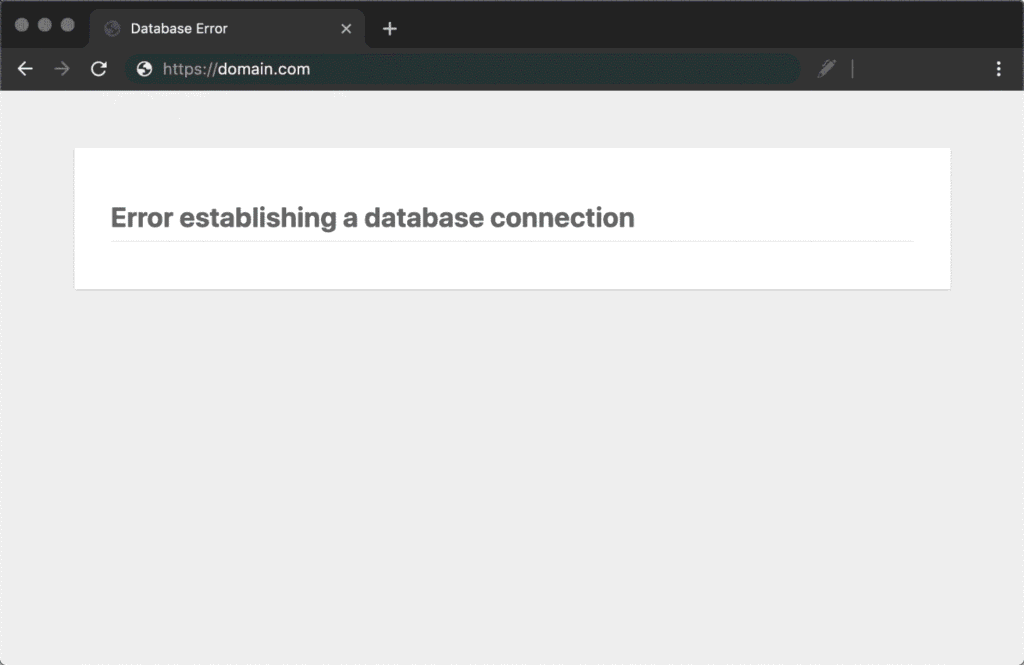
2. Error Establishing a Database Connection
What is it?
Your site cannot connect to the database.
Common causes
- Wrong database credentials
- Server issue
- Corrupted database
Fix steps
- Check
wp-config.php:
define('DB_NAME', 'your_db');
define('DB_USER', 'your_user');
define('DB_PASSWORD', 'your_password');
define('DB_HOST', 'localhost');
- Contact hosting support
- Repair database:
/wp-admin/maint/repair.php
Real Example
After migrating hosting, DB details changed → site down → fixed by updating credentials.
3. 404 Error on Pages or Posts
What happens?
Pages show 404 Not Found, but they exist.
Why?
- Broken permalink settings
Solution
- Go to:
- Settings → Permalinks
- Click Save Changes (no changes needed)
Bonus Fix
- Check
.htaccessfile
Real Example
Developer updated URL structure → links broke → fixed in 10 seconds.
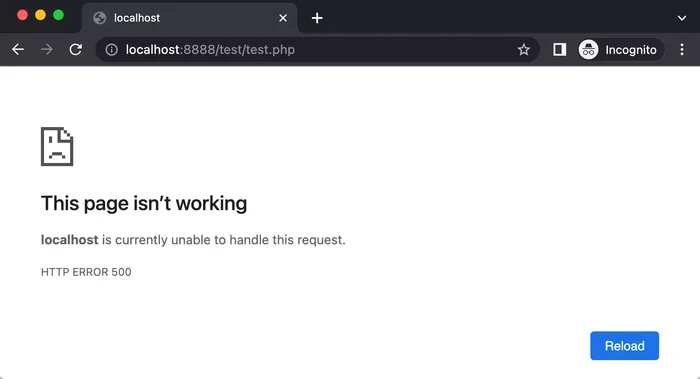
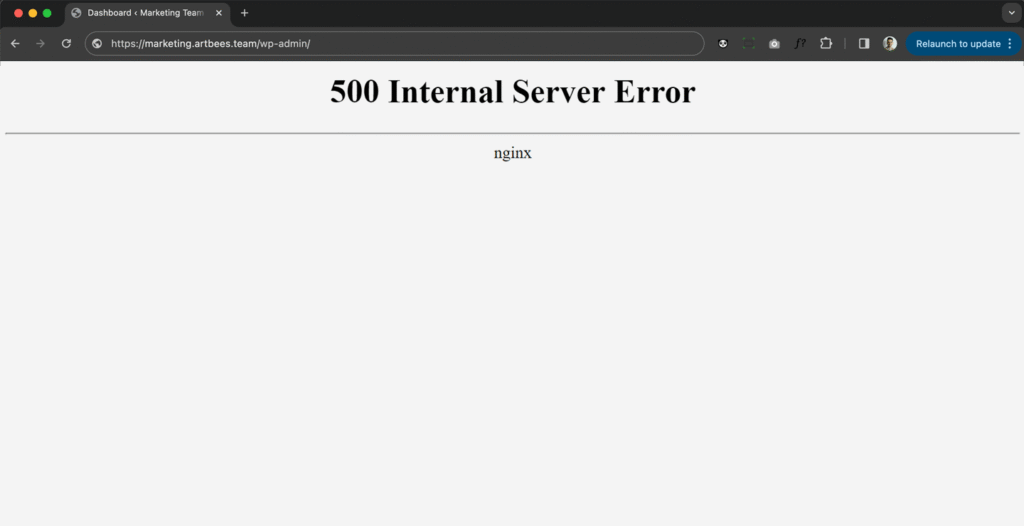
4. Internal Server Error (500)
Why it happens?
- Corrupted
.htaccess - Plugin/theme issue
- PHP limits
Fix it
Step 1: Rename .htaccess
- Login via FTP
- Rename
.htaccess→.htaccess_old
Step 2: Disable plugins
Step 3: Re-upload .htaccess
Real Example
A WooCommerce store crashed during update → .htaccess corrupted → fixed quickly.
5. Login Page Redirect Loop
Problem
You enter login details → it reloads again and again.
Causes
- Cookie issues
- Plugin conflict
- Wrong site URL
Fix
- Clear browser cookies
- Disable plugins
- Check
wp-config.php:
define('WP_HOME','https://yoursite.com');
define('WP_SITEURL','https://yoursite.com');
6. Memory Exhausted Error
Error message
“Allowed memory size exhausted”
Why?
Your site needs more memory than allocated.
Fix
Add in wp-config.php:
define('WP_MEMORY_LIMIT', '256M');
Or contact hosting provider.
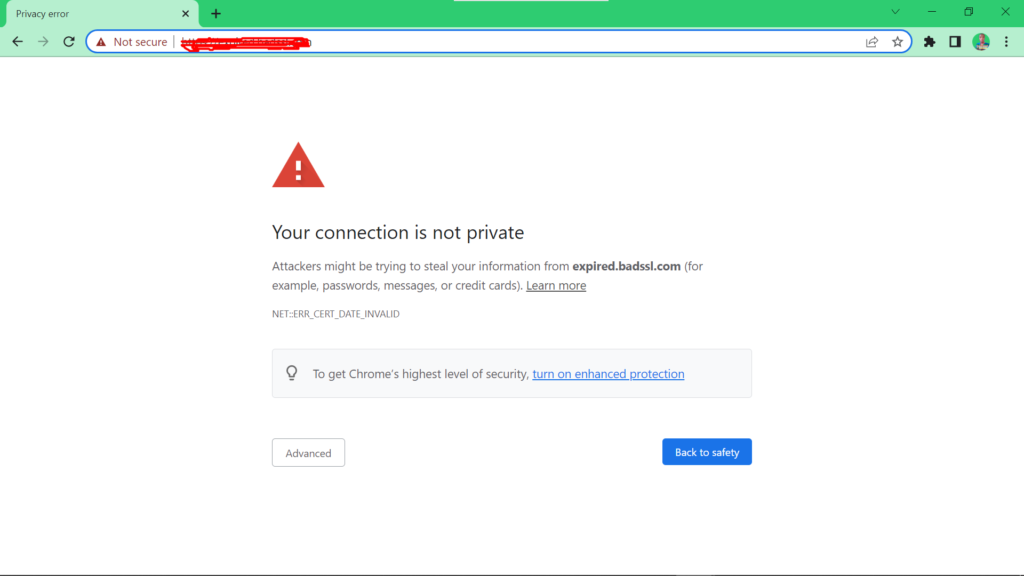
7. Mixed Content Error (HTTPS Issue)
What happens?
- Site shows “Not Secure”
- Images/scripts not loading
Fix
- Update URLs:
- Settings → General
- Use plugin like:
- Really Simple SSL
Real Example
Business switched to HTTPS → images broke → fixed via SSL plugin.
8. Plugin or Theme Conflict
Signs
- Site breaks after update
- Features stop working
Fix
- Disable all plugins
- Activate one by one
- Identify the problem plugin
Pro Tip
Always test updates on staging site.
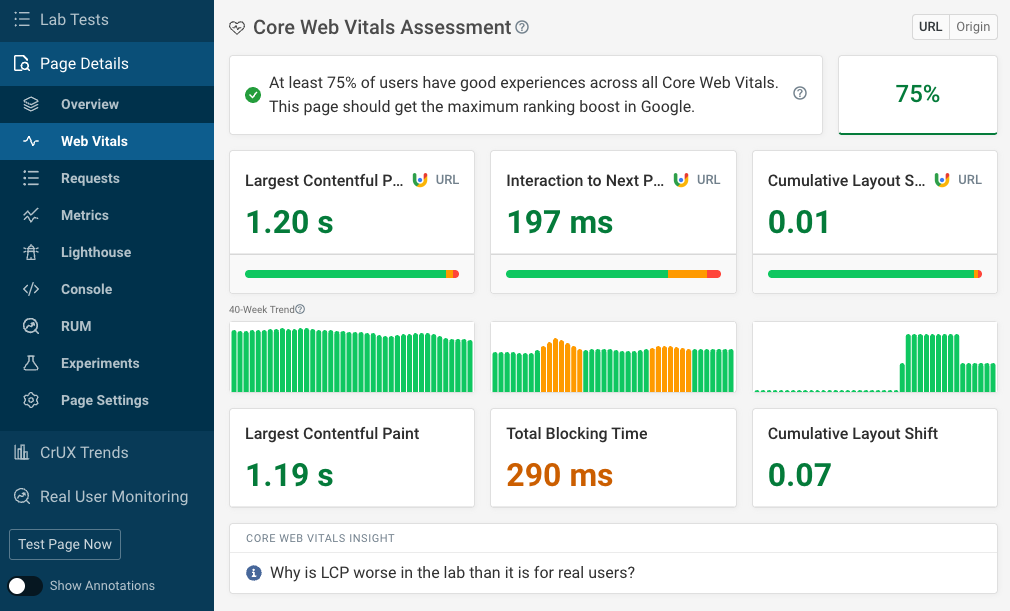
9. Slow Website Speed
Why it happens?
- Too many plugins
- Unoptimized images
- Cheap hosting
Fix
- Use caching plugin
- Optimize images
- Use CDN
Tools
- GTmetrix
- PageSpeed Insights
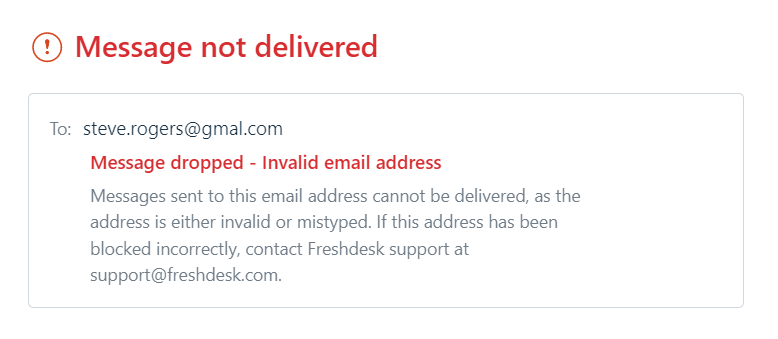
10. WordPress Not Sending Emails
Problem
- Contact form not working
- Order emails not received
Fix
- Use SMTP plugin
- Configure email properly
Recommended
- WP Mail SMTP
FAQs
1. What is the most common WordPress error?
The White Screen of Death and database connection errors are the most common.
2. Can I fix WordPress errors without coding?
Yes! Most issues can be fixed using basic steps like disabling plugins or changing settings.
3. How do I prevent WordPress errors?
- Keep plugins updated
- Use reliable hosting
- Take regular backups
4. Why does my WordPress site break after update?
Usually due to plugin or theme conflicts.
5. Should I use a staging site?
Yes, especially for business websites to avoid live issues.
Check More : How To Show Error Message On WooCommerce Checkout Page