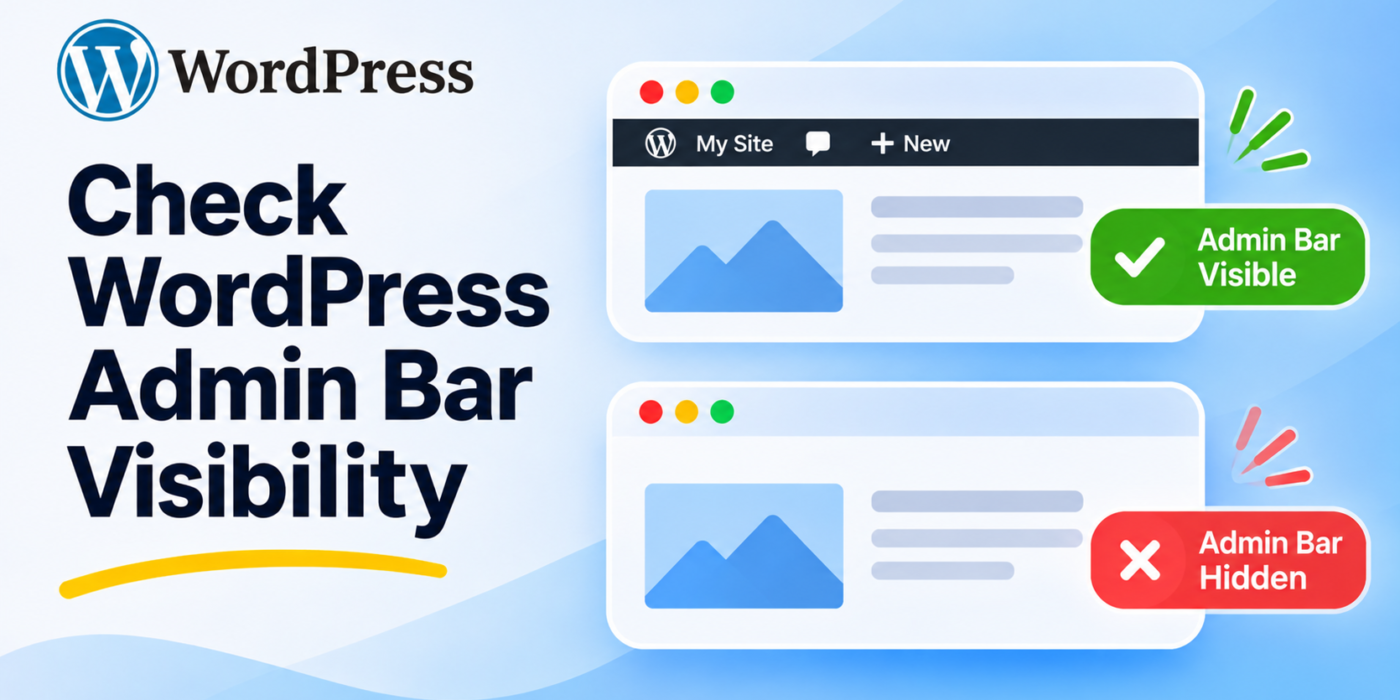
The WordPress admin bar, also called the toolbar, appears at the top of the website when a logged-in user views the front end. It provides quick links to the dashboard, theme customization, comments, and other administrative features.
When developing a WordPress theme or plugin, you may need to check whether this toolbar is visible before displaying certain elements or running specific code.
WordPress provides the is_admin_bar_showing() function to check the current visibility status. You can also use the show_admin_bar filter to control whether the toolbar should appear.
1. Check Whether the WordPress Admin Bar Is Visible
The easiest way to determine whether the admin bar is visible is to use the is_admin_bar_showing() function.
if ( is_admin_bar_showing() ) {

    // The WordPress admin bar is visible.
    echo 'Admin bar is showing.';

} else {

    // The WordPress admin bar is not visible.
    echo 'Admin bar is hidden.';

}
This function returns true when WordPress is set to display the admin bar and false when it is not.
You can use this condition inside your theme or plugin to run different code depending on the toolbar’s visibility.
2. Check Admin Bar Visibility Using the show_admin_bar Filter
WordPress also provides the show_admin_bar filter. It allows developers to modify the value that determines whether the admin bar should be displayed.
You can inspect the value passed to the filter and perform your own logic:
function geekerhub_check_admin_bar_visibility( $show_admin_bar ) {

    if ( $show_admin_bar ) {

        // Admin bar is enabled.
        // Add your custom logic here.

    } else {

        // Admin bar is disabled.
        // Add your custom logic here.

    }

    return $show_admin_bar;
}

add_filter(
    'show_admin_bar',
    'geekerhub_check_admin_bar_visibility'
);
The $show_admin_bar parameter contains the current visibility setting. Returning the original value keeps the existing WordPress behavior unchanged.
3. Hide the WordPress Admin Bar
If you want to hide the admin bar, you can use the same filter and return false.
add_filter(
    'show_admin_bar',
    '__return_false'
);
This disables the toolbar on the front end. Keep in mind that hiding the toolbar does not remove the user’s dashboard permissions or prevent access to the WordPress administration area.
You can also use the show_admin_bar() function to set the toolbar visibility:
show_admin_bar(false);
Call this function early enough in the request so that WordPress can apply the setting before the admin bar is rendered. Avoid using it after the toolbar has already been initialized.
For more details, see the official WordPress documentation for show_admin_bar() and the is_admin_bar_showing() function.
4. Hide the Admin Bar for Specific Users
You may want to hide the toolbar for certain users while keeping it visible for administrators. The show_admin_bar filter can check the current user’s role or capabilities.
For example, the following code hides the admin bar for users who do not have the manage_options capability:
function geekerhub_hide_admin_bar_for_non_admins( $show ) {

    if ( ! current_user_can( 'manage_options' ) ) {
        return false;
    }

    return $show;
}

add_filter(
    'show_admin_bar',
    'geekerhub_hide_admin_bar_for_non_admins'
);
Users with the manage_options capability will retain the existing toolbar setting. Other users will not see the admin bar on the front end.
Using capabilities is generally more flexible than checking a specific role name because capabilities can be assigned to different roles.
5. Always Show the WordPress Admin Bar
If you want to force the admin bar to appear for logged-in users, you can return true through the filter.
add_filter(
    'show_admin_bar',
    '__return_true'
);
This overrides the normal visibility preference for the requests where the filter runs. Use it only when your project requires the toolbar to remain visible.
6. Important Notes About the Admin Bar Filter
- Use the correct function: Use
is_admin_bar_showing()when you only need to check visibility. - Return a boolean: The
show_admin_barfilter expects a boolean value. Return the original value if you do not want to change the setting. - Consider plugin conflicts: Other themes or plugins may also use this filter. Their callbacks can change the final visibility setting.
- Use capabilities: When applying different rules to users, check capabilities such as
manage_optionsrather than relying only on role names. - Choose the right location: Add the filter during plugin or theme initialization, before WordPress determines whether to render the toolbar.
- Do not confuse visibility with permissions: Hiding the admin bar does not restrict access to dashboard pages or change user capabilities.
If you are adding this functionality to a custom WordPress plugin, see our guide on creating a custom plugin in WordPress to learn how to organize and manage your custom code.
Conclusion
WordPress provides simple functions and filters for checking and controlling admin bar visibility. Use is_admin_bar_showing() when you need to check whether the toolbar is displayed, and use the show_admin_bar filter when you need to change its visibility.
You can also use the filter to hide the toolbar for specific users or force it to appear, depending on your project requirements. Always consider other plugins and themes that may modify the same filter.