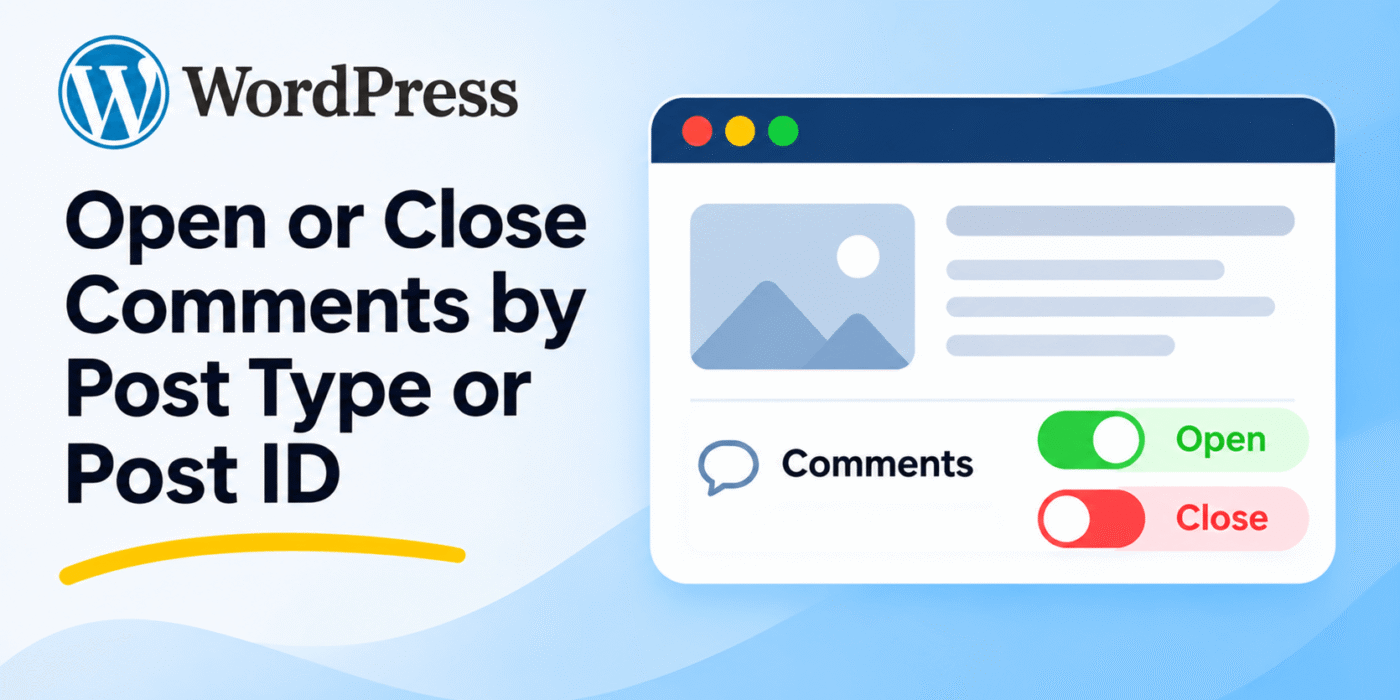
WordPress allows website owners to enable or disable comments on posts and pages. However, there may be situations where you want to control comments for a specific post type or an individual post instead of changing the settings for the entire website.
For example, you may want to disable comments on all WooCommerce products while keeping comments enabled on regular blog posts. You might also want to close comments on one particular post without affecting other content.
You can handle these requirements programmatically using the WordPress comments_open filter. It allows you to check the current comment status and modify it based on the post type or post ID.
1. Understand the comments_open Filter
WordPress provides the comments_open filter to determine whether comments are open for a particular post.
The filter passes two arguments to your callback function:
- $open: A boolean value indicating whether comments are currently open.
- $post_id: The ID of the post being checked.
Using these two arguments, you can identify the current post type or check whether the post ID matches a specific value.
You can find more information in the official WordPress documentation for comments_open.
2. Close Comments for a Specific Post Type
Suppose you want to disable comments for all WooCommerce products. You can check the post type using get_post_type() and return false when the current post belongs to the product post type.
/**
 * Close comments for a specific post type.
 */
function geekerhub_close_comments_by_post_type( $open, $post_id ) {

    if ( 'product' === get_post_type( $post_id ) ) {
        return false;
    }

    return $open;
}

add_filter(
    'comments_open',
    'geekerhub_close_comments_by_post_type',
    10,
    2
);
In this example, comments will be closed for all WooCommerce products. Comments on other post types will retain their existing settings.
You can replace product with another post type slug, such as portfolio, event, or a custom post type registered by your plugin.
3. Close Comments for a Specific Post ID
If you only want to disable comments on one particular post, check its ID inside the filter callback.
/**
 * Close comments for a specific post ID.
 */
function geekerhub_close_comments_by_post_id( $open, $post_id ) {

    if ( 121 === (int) $post_id ) {
        return false;
    }

    return $open;
}

add_filter(
    'comments_open',
    'geekerhub_close_comments_by_post_id',
    10,
    2
);
Replace 121 with the ID of the post where you want to close comments.
This filter changes the comment status only for the specified post. Other posts will continue to follow their existing comment settings.
4. Complete Example: Close Comments by Post Type and Post ID
You can combine both conditions in one callback function. The following example closes comments for all WooCommerce products and for a specific post with ID 121.
/**
 * Close comments for a specific post type or post ID.
 *
 * @param bool $open    Whether comments are currently open.
 * @param int  $post_id Current post ID.
 * @return bool
 */
function geekerhub_comments_open_callback( $open, $post_id ) {

    // Close comments for all WooCommerce products.
    if ( 'product' === get_post_type( $post_id ) ) {
        return false;
    }

    // Close comments for a specific post ID.
    if ( 121 === (int) $post_id ) {
        return false;
    }

    return $open;
}

add_filter(
    'comments_open',
    'geekerhub_comments_open_callback',
    10,
    2
);
With this code, comments will be disabled for the product post type and post ID 121. All other posts will retain their existing comment status.
5. How to Open Comments for a Specific Post
The same filter can also be used to force comments to remain open for a particular post or post type.
For example, the following code opens comments for post ID 121, even if its existing comment setting is closed:
/**
 * Open comments for a specific post ID.
 */
function geekerhub_open_comments_by_post_id( $open, $post_id ) {

    if ( 121 === (int) $post_id ) {
        return true;
    }

    return $open;
}

add_filter(
    'comments_open',
    'geekerhub_open_comments_by_post_id',
    10,
    2
);
Use this approach carefully because it overrides the normal comment status for the selected post. If another plugin or theme also modifies the same filter, the final result may depend on the callback priorities and execution order.
6. Where Should You Add This Code?
You can add the code to your active child theme’s functions.php file or place it inside a custom plugin.
If the post type is registered by another plugin, you do not need to edit that plugin’s files. The comments_open filter lets you customize comment behavior independently.
For more information about organizing custom functionality, read our guide on how to create a custom plugin in WordPress.
Important Notes
- Use the correct post type slug: Make sure you use the registered post type name, not its display label.
- Check the post ID: Confirm that the ID in your condition belongs to the intended post.
- Return the original value: If no condition matches, return
$opento preserve the existing comment setting. - Filter priority: Other plugins or themes may use the same filter. Their callbacks can affect the final result.
- Existing comments: Closing comments prevents new comments from being accepted through the normal WordPress comment system. It does not automatically delete comments that have already been submitted.
- Comment display: The
comments_openfilter controls whether comments are open. Your theme may still display existing comments even when new comments are closed. - Test your changes: Check the affected post types and individual posts on a staging website before applying the code to a live site.
Conclusion
You can easily open or close comments for a specific WordPress post type or post ID using the comments_open filter.
Use get_post_type() to target an entire post type, or compare the current post ID to target an individual post. You can also return true to force comments open for selected content.
This approach is useful when customizing comment behavior for custom post types, WooCommerce products, or individual posts without modifying WordPress core or third-party plugin files.