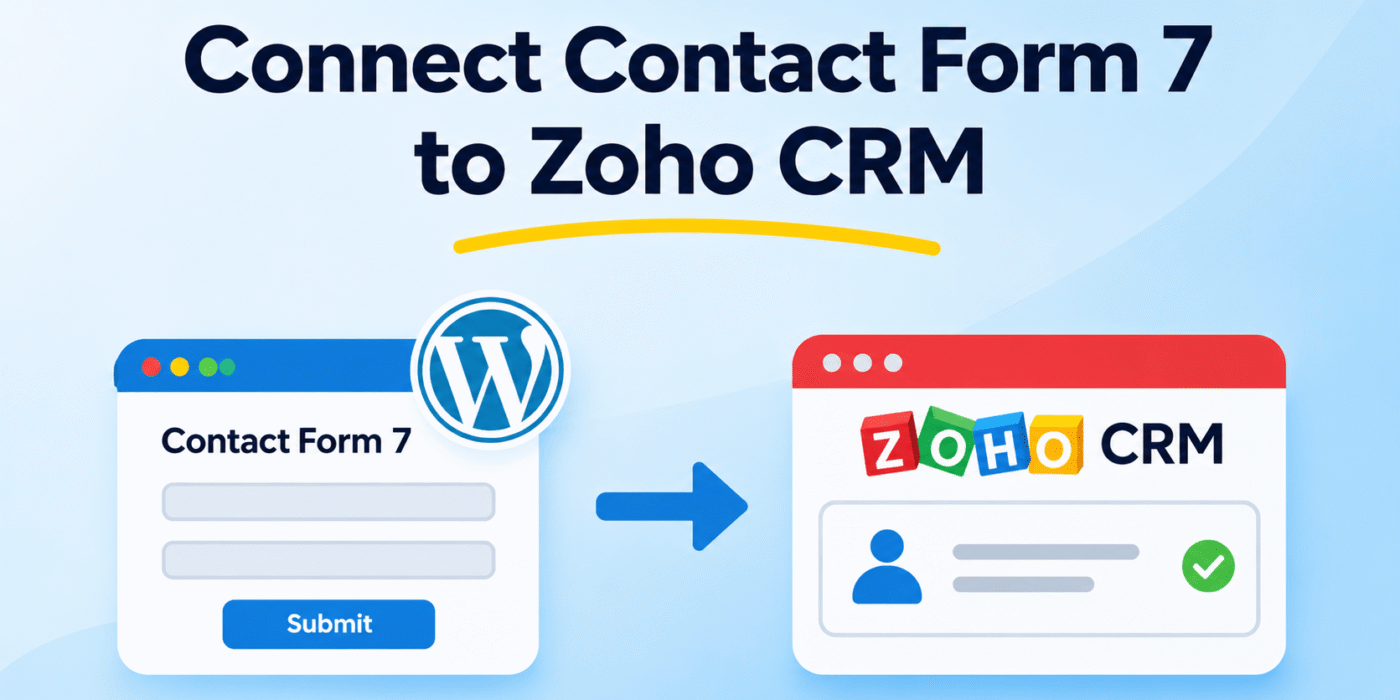
Contact Form 7 is a popular WordPress plugin for creating contact forms. If you use Zoho CRM to manage leads and customer information, you can connect it to Contact Form 7 so that form submissions are automatically sent to your CRM account.
You can build this integration using the Zoho CRM API and WordPress PHP functions. When a visitor submits your Contact Form 7 form, WordPress can collect the submitted information and send it to Zoho CRM as a new Lead record.
In this guide, we’ll walk through the main setup steps and provide a PHP example you can adapt for your website.
1. Create a Zoho API Application
Before connecting WordPress to Zoho CRM, you need to create an OAuth application and obtain the credentials required for API authentication.
- Sign in to your Zoho Developer Console.
- Create a new application using the appropriate client type for your integration.
- Configure the application and its redirect URL if required by your OAuth flow.
- Copy the Client ID and Client Secret.
- Generate an authorization code with the required Zoho CRM permissions.
- Exchange the authorization code for an access token and refresh token.
For creating Lead records, your OAuth application needs an appropriate scope, such as ZohoCRM.modules.Leads.CREATE. The exact authorization flow depends on your application type.
Refer to the official Zoho CRM authorization documentation for the authorization process.
2. Understand Zoho OAuth Tokens
Zoho CRM uses OAuth 2.0 to authenticate API requests. You cannot simply generate an access token by calling a PHP function such as generateAuthToken() unless you have implemented or installed a library that provides that method.
The normal OAuth process works as follows:
- Generate an authorization code through Zoho.
- Exchange the code for an access token and refresh token.
- Use the access token in the Authorization header when calling the CRM API.
- When the access token expires, use the refresh token to obtain a new one.
Zoho access tokens are valid for approximately one hour. Your integration should refresh expired tokens automatically rather than requiring you to generate a new token manually for every form submission.
For more details, see Zoho’s official access and refresh token documentation.
3. Store Your Zoho API Credentials Securely
Do not place your Zoho Client Secret, refresh token, or other sensitive credentials directly in publicly accessible files or frontend JavaScript.
For a simple implementation, you can define your credentials in the WordPress wp-config.php file or load them from a secure configuration system.
For example, add the following constants to wp-config.php and replace the placeholder values with your actual credentials:
define('GEEKERHUB_ZOHO_ACCESS_TOKEN', 'your_access_token');
define('GEEKERHUB_ZOHO_API_DOMAIN', 'https://www.zohoapis.com');
Use the API domain returned by Zoho during authentication. The example above uses a sample US domain. Your domain may be different depending on your Zoho data center.
This example uses a stored access token to demonstrate the CRM request. For a production integration, implement the refresh-token process and update the stored access token when it expires.
4. Create a Contact Form 7 Form
Next, create a form in Contact Form 7 containing the fields you want to send to Zoho CRM.
For example, you can use the following form fields:
[text* first-name placeholder "First Name"]

[text* last-name placeholder "Last Name"]

[email* email placeholder "Email Address"]

[text company placeholder "Company"]

[submit "Submit"]
Save the form and note its field names. The names used in your PHP code must match the names defined in the Contact Form 7 form.
5. Send Contact Form 7 Submissions to Zoho CRM
Contact Form 7 provides the wpcf7_mail_sent action hook, which runs after a form submission has been successfully processed and its mail has been sent.
We can use this hook to retrieve the submitted form data and send it to Zoho CRM using WordPress’s wp_remote_post() function.
Add the following code to a small custom plugin or your child theme’s functions.php file:
function geekerhub_send_cf7_lead_to_zoho( $contact_form ) {

    // Check that the Zoho credentials are available.
    if (
        ! defined( 'GEEKERHUB_ZOHO_ACCESS_TOKEN' ) ||
        ! defined( 'GEEKERHUB_ZOHO_API_DOMAIN' )
    ) {
        return;
    }

    // Get submitted Contact Form 7 data.
    $submission = WPCF7_Submission::get_instance();

    if ( ! $submission ) {
        return;
    }

    $form_data = $submission->get_posted_data();

    // Prepare the Zoho CRM Lead data.
    $lead_data = array(
        'First_Name' => sanitize_text_field(
            $form_data['first-name'] ?? ''
        ),
        'Last_Name' => sanitize_text_field(
            $form_data['last-name'] ?? ''
        ),
        'Email' => sanitize_email(
            $form_data['email'] ?? ''
        ),
        'Company' => sanitize_text_field(
            $form_data['company'] ?? ''
        ),
    );

    // Last Name is mandatory for a Zoho Lead.
    if ( empty( $lead_data['Last_Name'] ) ) {
        return;
    }

    // Build the Zoho CRM API endpoint.
    $api_url = trailingslashit(
        GEEKERHUB_ZOHO_API_DOMAIN
    ) . 'crm/v8/Leads';

    // Send the Lead record to Zoho CRM.
    $response = wp_remote_post(
        $api_url,
        array(
            'timeout' => 20,
            'headers' => array(
                'Authorization' => 'Zoho-oauthtoken ' .
                    GEEKERHUB_ZOHO_ACCESS_TOKEN,
                'Content-Type' => 'application/json',
            ),
            'body' => wp_json_encode(
                array(
                    'data' => array( $lead_data ),
                )
            ),
        )
    );

    // Handle WordPress HTTP errors.
    if ( is_wp_error( $response ) ) {
        error_log(
            'Zoho CRM API Error: ' . $response->get_error_message()
        );
        return;
    }

    // Check the HTTP response.
    $status_code = wp_remote_retrieve_response_code( $response );

    if ( $status_code < 200 || $status_code >= 300 ) {
        error_log(
            'Zoho CRM API returned HTTP status: ' . $status_code
        );
        error_log(
            'Zoho CRM response: ' .
            wp_remote_retrieve_body( $response )
        );
    }
}

add_action(
    'wpcf7_mail_sent',
    'geekerhub_send_cf7_lead_to_zoho'
);
This example performs the following tasks:
- Retrieves the submitted Contact Form 7 data.
- Sanitizes the form values before sending them to Zoho.
- Maps the form fields to Zoho CRM Lead field API names.
- Sends a POST request to the Zoho CRM API.
- Logs an error if the HTTP request fails or Zoho returns an unsuccessful status.
Notice that Zoho CRM uses field API names such as First_Name, Last_Name, and Email. These are not necessarily the same as the labels displayed in your CRM interface. You can check the field API names in your Zoho CRM settings.
The Last_Name field is mandatory when creating a Lead. Depending on your CRM configuration, additional fields may also be required.
6. Understand the Zoho CRM API Request
The example sends the submitted information to the Zoho CRM v8 Leads endpoint:
POST https://www.zohoapis.com/crm/v8/Leads
The request includes an Authorization header containing the OAuth access token and a JSON body containing the Lead information.
The JSON structure looks like this:
{
  "data": [
    {
      "First_Name": "John",
      "Last_Name": "Smith",
      "Email": "john@example.com",
      "Company": "Example Company"
    }
  ]
}
Zoho CRM processes the request and returns a response indicating whether the record was created successfully. You should inspect the response body as well as the HTTP status code when troubleshooting the integration.
For the complete request format and supported fields, refer to the official Zoho CRM Insert Records API documentation.
7. Test the Contact Form 7 to Zoho CRM Integration
After adding the code and configuring your OAuth credentials, test the integration before using it on your live website.
- Open the page containing your Contact Form 7 form.
- Enter test information into the form fields.
- Submit the form.
- Open your Zoho CRM account.
- Navigate to the Leads module and check whether the new record appears.
- If the record is missing, check your WordPress PHP error log and the Zoho API response.
Also test what happens when an access token expires. A production integration should refresh the token and retry the request when appropriate.
Important Considerations
- Token management: Access tokens expire, so implement automatic refresh using the stored refresh token.
- Data center: Use the correct Zoho Accounts URL and API domain for your organization.
- Field mapping: Make sure the Contact Form 7 field names match your PHP mapping and the Zoho field API names are correct.
- Duplicate records: Consider using Zoho’s upsert API or another duplicate-handling strategy if visitors may submit the same information more than once.
- Error logging: Log API failures securely, but never expose access tokens, refresh tokens, or client secrets in public error messages.
- Privacy: Inform visitors how their submitted information will be used and sent to your CRM, and follow applicable privacy requirements.
Conclusion
Connecting Contact Form 7 to Zoho CRM allows you to send website inquiries directly to your CRM as Lead records. By using Contact Form 7’s submission hook, WordPress HTTP functions, and the Zoho CRM API, you can build an integration without relying on a separate integration plugin.
The example in this guide demonstrates the basic API request. For a production website, make sure you also implement secure credential storage, automatic OAuth token refreshing, proper error handling, and duplicate management.