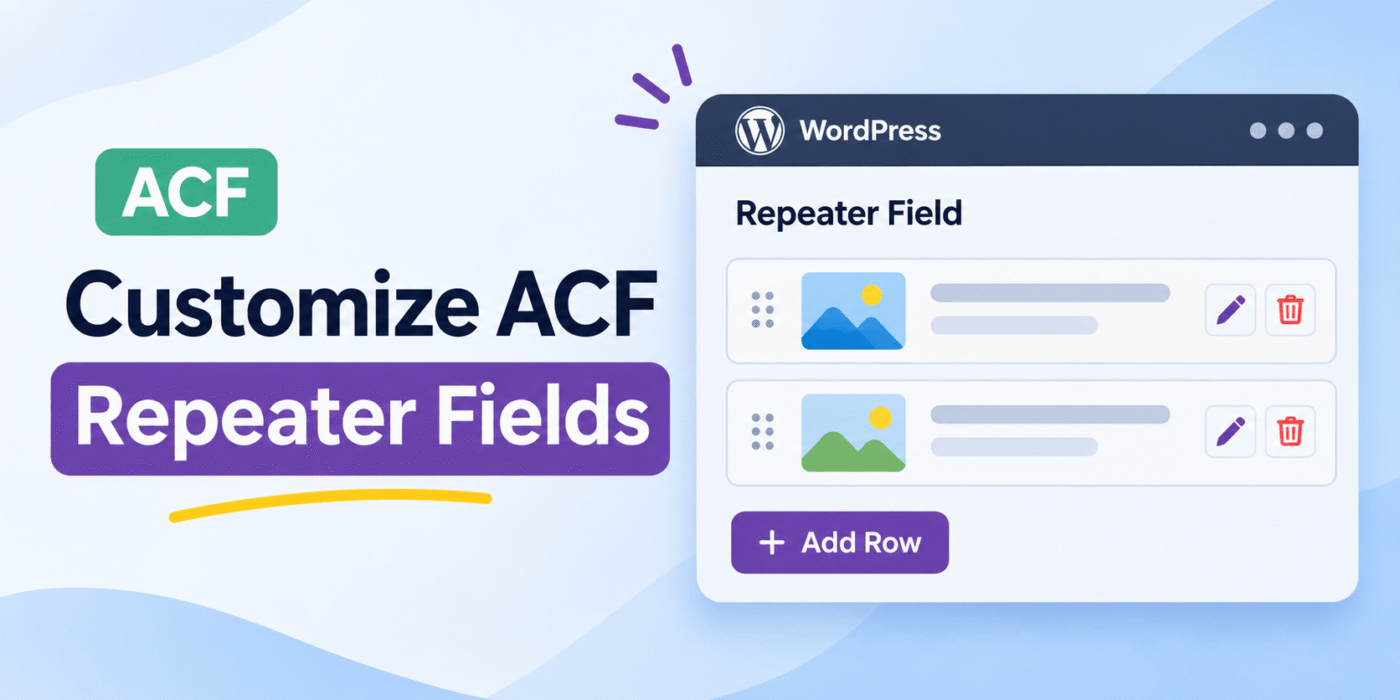
Advanced Custom Fields (ACF) is one of the most useful WordPress plugins for creating custom fields and managing structured content. Its Repeater field allows you to add multiple rows containing different subfields.
However, things can become complicated when you use Taxonomy fields inside an ACF Repeater. For example, you may have one field for selecting a parent taxonomy term and another field for selecting its child terms.
By default, an ACF Taxonomy field can display all available taxonomy terms. But what if you want the second field to display only the child terms related to the parent selected in the first field?
In this tutorial, we will customize ACF Repeater fields using PHP filters and JavaScript. We will create two dependent Taxonomy subfields:
- Teacher: Displays only parent taxonomy terms.
- Student: Displays only child terms belonging to the selected teacher.
The Student field will update its available options based on the Teacher selection in the same Repeater row. This makes it easier to manage related taxonomy terms from the WordPress admin area.
If you also work with taxonomy term IDs in WordPress, read our guide on how to fetch the current taxonomy term ID instead of the slug. Understanding term IDs is useful when creating dependent taxonomy fields.
Example: Teacher and Student Taxonomy Relationship
Let’s understand the requirement with a simple example.
Assume we have a hierarchical taxonomy named teacher_student_relation. It contains parent terms for teachers and child terms for their students.
Our taxonomy structure looks like this:
- Teacher 1
- Student 1 T1
- Student 2 T1
- Student 3 T1
- Teacher 2
- Student 1 T2
- Student 2 T2
- Student 3 T2
Now create an ACF Repeater field with the following structure:
Repeater Field: Teacher Student Relationship
- Subfield 1: Teacher (Taxonomy field)
- Field name:
teacher - Field key:
field_5d37e38c8a36b
- Field name:
- Subfield 2: Student (Taxonomy field)
- Field name:
student - Field key:
field_5d37e3b18d756
- Field name:
By default, both Taxonomy fields may display parent and child terms. We want to customize this behavior:
- The Teacher field should display only parent terms.
- The Student field should display only the child terms of the selected Teacher.
- Changing the Teacher should clear the previously selected Student.
How to Customize ACF Repeater Taxonomy Fields
We will use ACF’s Taxonomy field query filter to control which terms appear in each field. JavaScript will pass the selected parent term ID to the server when the Student field requests its options.
ACF provides a dedicated Taxonomy field query filter for modifying the arguments used to retrieve taxonomy terms. We will use this filter for both the Teacher and Student fields.
Follow these steps:
- Confirm the ACF field names and field keys.
- Enqueue a JavaScript file in the ACF admin area.
- Use a PHP filter to display only parent terms in the Teacher field.
- Use another PHP filter to retrieve child terms for the selected Teacher.
- Use JavaScript to send the selected Teacher term ID to the Student field.
Step 1: Enqueue the JavaScript File in the ACF Admin Area
First, create a JavaScript file named acf-jquery.js inside your active child theme directory.
Your theme structure should look like this:
your-child-theme/
    functions.php
    acf-jquery.js
Now add the following code to your child theme’s functions.php file:
function gh_acf_admin_enqueue_scripts() {

    wp_enqueue_script(
        'gh-acf-admin-js',
        get_stylesheet_directory_uri() . '/acf-jquery.js',
        array( 'jquery', 'acf-input' ),
        '1.0.0',
        true
    );
}

add_action(
    'acf/input/admin_enqueue_scripts',
    'gh_acf_admin_enqueue_scripts'
);
How this code works:
acf/input/admin_enqueue_scriptsloads scripts on ACF input screens.get_stylesheet_directory_uri()points to the active theme or child theme directory.jqueryloads jQuery as a dependency.acf-inputensures the ACF input scripts are loaded before our custom script.
The wp_enqueue_script() function is the recommended WordPress method for loading JavaScript files. You can learn more from the official WordPress wp_enqueue_script() documentation.
Step 2: Display Only Parent Terms in the Teacher Field
Now we need to customize the Teacher Taxonomy field so that it displays only parent terms.
ACF’s Taxonomy field supports hierarchical taxonomies and allows developers to customize the terms displayed in the field. You can review the official ACF Taxonomy field documentation for more information about its available settings.
Add the following PHP code to your functions.php file:
function gh_show_only_parent_teacher_terms(
    $args,
    $field,
    $post_id
) {

    $args['parent'] = 0;

    return $args;
}

add_filter(
    'acf/fields/taxonomy/query/name=teacher',
    'gh_show_only_parent_teacher_terms',
    10,
    3
);
How does it work?
The important line is:
$args['parent']= 0;
For a hierarchical taxonomy, setting parent to 0 retrieves only top-level terms. Child terms will not appear in the Teacher dropdown.
The filter uses the ACF field name teacher, so make sure this matches the actual field name in your Repeater configuration.
Step 3: Display Child Terms Based on the Selected Teacher
Next, we need to customize the Student field.
When a user selects a Teacher, we want the Student field to display only the child terms belonging to that selected parent term.
We can do this by reading a custom request parameter named ParentId and using it as the parent argument in the taxonomy query.
Add this PHP code to your functions.php file:
function gh_show_teacher_child_terms(
    $args,
    $field,
    $post_id
) {

    $parent_id = isset( $_REQUEST['ParentId'] )
        ? absint( wp_unslash( $_REQUEST['ParentId'] ) )
        : 0;

    // Do not show child terms until a parent is selected.
    if ( ! $parent_id ) {
        $args['include'] = array( 0 );
        return $args;
    }

    // Show only direct children of the selected teacher.
    $args['parent'] = $parent_id;

    return $args;
}

add_filter(
    'acf/fields/taxonomy/query/name=student',
    'gh_show_teacher_child_terms',
    10,
    3
);
Important parts of this code:
1. Retrieve the selected parent ID:
$parent_id = isset( $_REQUEST['ParentId'] )
    ? absint( wp_unslash( $_REQUEST['ParentId'] ) )
    : 0;
JavaScript will send the selected Teacher term ID through the ParentId request parameter. We use absint() to ensure that the value is treated as a non-negative integer.
2. Handle an empty parent selection:
if ( ! $parent_id ) {
    $args['include'] = array( 0 );
    return $args;
}
If no Teacher has been selected, the Student field should not display unrelated child terms. The query is restricted to an empty result.
3. Retrieve the selected Teacher’s child terms:
$args['parent']= $parent_id;
This tells WordPress to retrieve only terms whose direct parent matches the selected Teacher term ID.
This example assumes that the taxonomy is hierarchical and that students are direct children of teachers.
Step 4: Send the Selected Teacher ID Using JavaScript
We have now created the PHP filters. The remaining task is to send the selected Teacher term ID whenever the Student field requests its taxonomy options.
ACF provides JavaScript hooks and filters for extending its admin interface. You can learn more about these features in the official ACF JavaScript API documentation.
Open the acf-jquery.js file created in Step 1 and add the following code:
(function ($) {

    if (typeof acf === 'undefined') {
        return;
    }

    var teacherFieldKey = 'field_5d37e38c8a36b';
    var studentFieldKey = 'field_5d37e3b18d756';

    /**
     * Add the selected Teacher term ID to the Student AJAX request.
     */
    acf.add_filter(
        'select2_args',
        function (args, $select, settings) {

            // Apply only to the Student taxonomy field.
            if (
                !$select.attr('id') ||
                $select.attr('id').indexOf(studentFieldKey) === -1
            ) {
                return args;
            }

            if (!args.ajax || typeof args.ajax.data !== 'function') {
                return args;
            }

            // Keep the original ACF AJAX request data.
            var originalAjaxData = args.ajax.data;

            args.ajax.data = function (params) {

                var data = originalAjaxData.apply(this, arguments);

                // Find the Teacher field in the same Repeater row.
                var parentId = $select
                    .closest('.acf-row')
                    .find(
                        '[data-key="' + teacherFieldKey + '"] select'
                    )
                    .val();

                data.ParentId = parentId || '';

                return data;
            };

            return args;
        }
    );

    /**
     * Clear the Student selection when the Teacher changes.
     */
    $(document).on(
        'change',
        '[data-key="' + teacherFieldKey + '"] select',
        function () {

            var $row = $(this).closest('.acf-row');

            var $studentField = $row
                .find('[data-key="' + studentFieldKey + '"] select');

            if ($studentField.length) {
                $studentField.val(null).trigger('change');
            }
        }
    );

})(jQuery);
How Does the JavaScript Work?
1. Identify the ACF fields:
var teacherFieldKey = 'field_5d37e38c8a36b';

var studentFieldKey = 'field_5d37e3b18d756';
These are the field keys from our ACF Repeater configuration. Replace them if your field keys are different.
2. Modify the Student field’s Select2 arguments:
acf.add_filter('select2_args', function (args, $select, settings) {
    // Custom AJAX data
    return args;
});
ACF provides the select2_args filter, which lets us modify the Select2 configuration for an ACF field.
3. Find the Teacher field in the same Repeater row:
var parentId = $select
    .closest('.acf-row')
    .find('[data-key="' + teacherFieldKey + '"] select')
    .val();
This is important when using a Repeater because each row has its own Teacher and Student fields. The code finds the Teacher selection in the same row as the current Student field.
4. Add the parent ID to the AJAX request:
data.ParentId = parentId || '';
The selected Teacher term ID is added to the AJAX request. The PHP filter from Step 3 reads this value and uses it to retrieve the correct child terms.
5. Clear the Student field when the Teacher changes:
$studentField.val(null).trigger('change');
This prevents an old Student selection from remaining after the user chooses a different Teacher.
Step 5: Test the Dependent ACF Repeater Fields
After adding the PHP and JavaScript code, open the WordPress edit screen containing your ACF Repeater field.
Test the following steps:
- Add a new Repeater row.
- Open the Teacher field.
- Confirm that only parent terms are displayed.
- Select Teacher 1.
- Open the Student field and confirm that only Student 1 T1, Student 2 T1, and Student 3 T1 are available.
- Change the Teacher to Teacher 2.
- Confirm that the previous Student selection is cleared.
- Open the Student field again and confirm that only Teacher 2’s child terms are displayed.
- Add another Repeater row and verify that its selections work independently.
If the Student field does not update, check the browser’s developer console and the AJAX request in the Network tab. Confirm that the request includes the correct ParentId value.
Important Notes and Troubleshooting
1. Confirm Your ACF Field Keys
The JavaScript uses the ACF field keys to identify the Teacher and Student fields. If you change the fields or recreate them, the keys may be different.
Check the field settings in ACF and update the JavaScript variables accordingly.
2. Confirm the Taxonomy Is Hierarchical
The parent and child relationship requires a hierarchical taxonomy. If your taxonomy is not hierarchical, the parent query argument will not provide the expected results.
3. Check the Field Names
The PHP filters use these field names:
teacherstudent
Make sure they match the actual ACF subfield names. If you use different names, update the filter hooks.
4. Check the Repeater Row Structure
The JavaScript searches for the Teacher and Student fields inside the same .acf-row. This is important because selecting a Teacher in one row should not affect the Student field in another row.
5. Check Your ACF Version
ACF’s JavaScript filters and Select2 integration can vary between versions. If the code does not run as expected, check the current ACF documentation and browser console for JavaScript errors.
Frequently Asked Questions
1. Can I use dependent Taxonomy fields inside an ACF Repeater?
Yes. You can use ACF’s Taxonomy query filter and JavaScript to pass the selected parent term ID to another Taxonomy field in the same Repeater row.
2. Why does the Student field display all taxonomy terms?
By default, the Taxonomy field can retrieve terms without considering the selection in another field. You need to modify its query arguments using the ACF Taxonomy query filter.
3. Can I display only parent terms in an ACF Taxonomy field?
Yes. Use the acf/fields/taxonomy/query filter and set $args['parent'] = 0 to retrieve only top-level terms from a hierarchical taxonomy.
4. Can I use this functionality with a custom taxonomy?
Yes. The same approach works with a custom hierarchical taxonomy. Make sure the taxonomy is registered correctly and that the ACF Taxonomy fields use the intended taxonomy.
5. Does this code work with multiple Repeater rows?
The JavaScript locates the Teacher field within the same Repeater row as the Student field. This allows each row to maintain its own parent and child selection.
Final Thoughts
ACF Repeater fields are useful for managing structured content, but dependent Taxonomy fields require a little customization.
By combining ACF’s Taxonomy query filter with JavaScript, you can display only parent terms in one field and dynamically retrieve the related child terms in another field.
This approach is useful for teacher and student relationships, product categories and subcategories, location and area selection, and other hierarchical taxonomy structures.
Make sure you use the correct ACF field keys and names, test the behavior with multiple Repeater rows, and verify that changing the parent selection clears the previous child selection.