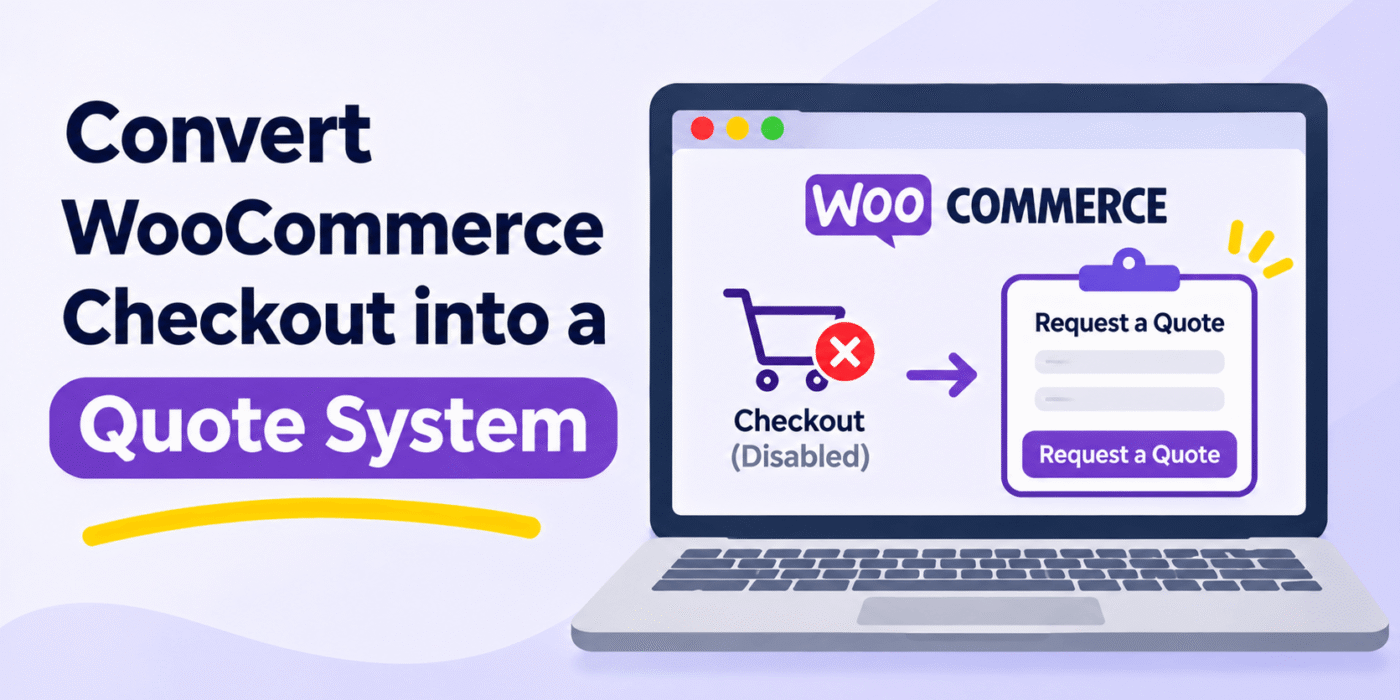
WooCommerce is designed to let customers add products to their cart and complete purchases through the checkout page. However, some businesses prefer to collect quote requests instead of accepting direct online payments.
For example, wholesale stores, custom product sellers, B2B businesses, and companies offering made-to-order products may need to review a customer’s requirements before providing a final price.
You can convert your WooCommerce store into a quote request system by using a quote-request plugin and customizing a few WooCommerce settings and hooks.
In this tutorial, you will learn how to replace the normal purchasing process with a quote-based workflow, customize product buttons, and prevent customers from purchasing products directly.
1. Install a WooCommerce Quote Request Plugin
The easiest way to add quote functionality to WooCommerce is to install a quote-request plugin.
A suitable plugin can provide features such as:
- Displaying a Request a Quote button on product pages.
- Allowing customers to add products to a quote list.
- Collecting customer details through a quote request form.
- Sending quote request notifications to the store administrator.
- Allowing administrators to review requests and respond with prices.
- Customizing quote request emails and form fields.
Choose a plugin that supports your store’s requirements. Some quote plugins also allow you to hide product prices, replace Add to Cart buttons, and disable the standard checkout process.
2. Customize the Quote Request Form and Emails
After installing and activating your quote-request plugin, configure its form and notification settings.
You can customize the form to collect the information needed to prepare an accurate quotation. Depending on your business, useful fields may include:
- Customer name
- Email address
- Phone number
- Product name or product selection
- Required quantity
- Additional product requirements
- Customer message
You should also configure the notification email so that the store administrator receives each new quote request.
Make sure customers receive a confirmation message after submitting their requests. This helps them understand that their request has been received and is awaiting a response.
3. Disable Direct Product Purchasing in WooCommerce
If you want customers to request quotations instead of purchasing products directly, you can disable product purchasing using the woocommerce_is_purchasable filter.
Add the following code to your child theme’s functions.php file or a site-specific plugin:
add_filter('woocommerce_is_purchasable', '__return_false');
This filter makes WooCommerce products non-purchasable. As a result, the standard Add to Cart functionality will no longer work for those products.
Important: This code disables purchasing for all WooCommerce products. Before using it, confirm that your quote-request plugin supports adding non-purchasable products to quote requests. Otherwise, the quote functionality may also stop working.
If you only want to remove the standard purchasing buttons from the product page, you can use a different approach. The following example removes the standard Add to Cart button from single product pages:
remove_action(
    'woocommerce_single_product_summary',
    'woocommerce_template_single_add_to_cart',
    30
);
This removes the standard product-page button, but it does not disable every possible purchasing route. Use your quote plugin’s settings and appropriate purchasing restrictions if you need a complete quote-only workflow.
4. Change the Add to Cart Button Text to Request a Quote
You may also want to replace the default Add to Cart button text with a more suitable label, such as Request a Quote.
WooCommerce provides filters that let you customize the button text on single product pages and product listing pages.
Change the Button Text on Single Product Pages
Add the following code to your child theme’s functions.php file:
function custom_quote_button_text() {
    return __( 'Request a Quote', 'woocommerce' );
}

add_filter(
    'woocommerce_product_single_add_to_cart_text',
    'custom_quote_button_text'
);
Change the Button Text on Shop and Archive Pages
If you also want to change the button text on the shop page and product category pages, use the following filter:
function custom_quote_loop_button_text() {
    return __( 'Request a Quote', 'woocommerce' );
}

add_filter(
    'woocommerce_product_add_to_cart_text',
    'custom_quote_loop_button_text'
);
These filters change the displayed button label. They do not automatically convert the Add to Cart action into a quote submission. For that functionality, use a quote-request plugin or implement a custom quote workflow.
5. Test the WooCommerce Quote Request Process
After configuring the plugin and adding any required code, test the complete customer journey before making the changes available on your live store.
- Open your WooCommerce store in a private or incognito browser window.
- Visit a product page.
- Check whether the Request a Quote button appears correctly.
- Submit a quote request with sample customer information.
- Verify that the request is received in the store’s administration area.
- Check whether the administrator receives the notification email.
- Confirm that the customer receives a submission confirmation.
- Verify that the standard checkout process is unavailable if your store is intended to operate exclusively through quotations.
Also test the process on mobile devices and check that the quote form works correctly with variable products and different product quantities if your store supports them.
6. Display a Contact Form Instead of Product Prices (Optional)
Some businesses do not want to display fixed product prices because the final cost depends on quantity, customization, shipping, or other customer requirements.
In this situation, you can replace the product price with a contact form or quote request form.
For another approach to this type of customization, see our tutorial: How to Replace Product Price with a Contact Form in WooCommerce.
Conclusion
Converting WooCommerce checkout into a quote request system can help businesses that need to review customer requirements before providing a final price.
A quote-request plugin can handle the main functionality, including quote forms, customer notifications, and request management. You can then use WooCommerce hooks to customize button labels and control the standard purchasing process.
Remember that changing button text alone does not create a quote system. Make sure your quote plugin handles the actual submission process and test the complete workflow before disabling normal purchases on your store.