When developing a WordPress theme or plugin, you may create several PHP classes and functions. As a project grows, managing all these files with multiple require and require_once statements can become difficult.
PHP provides two useful features that help organize larger projects: namespaces and autoloading.
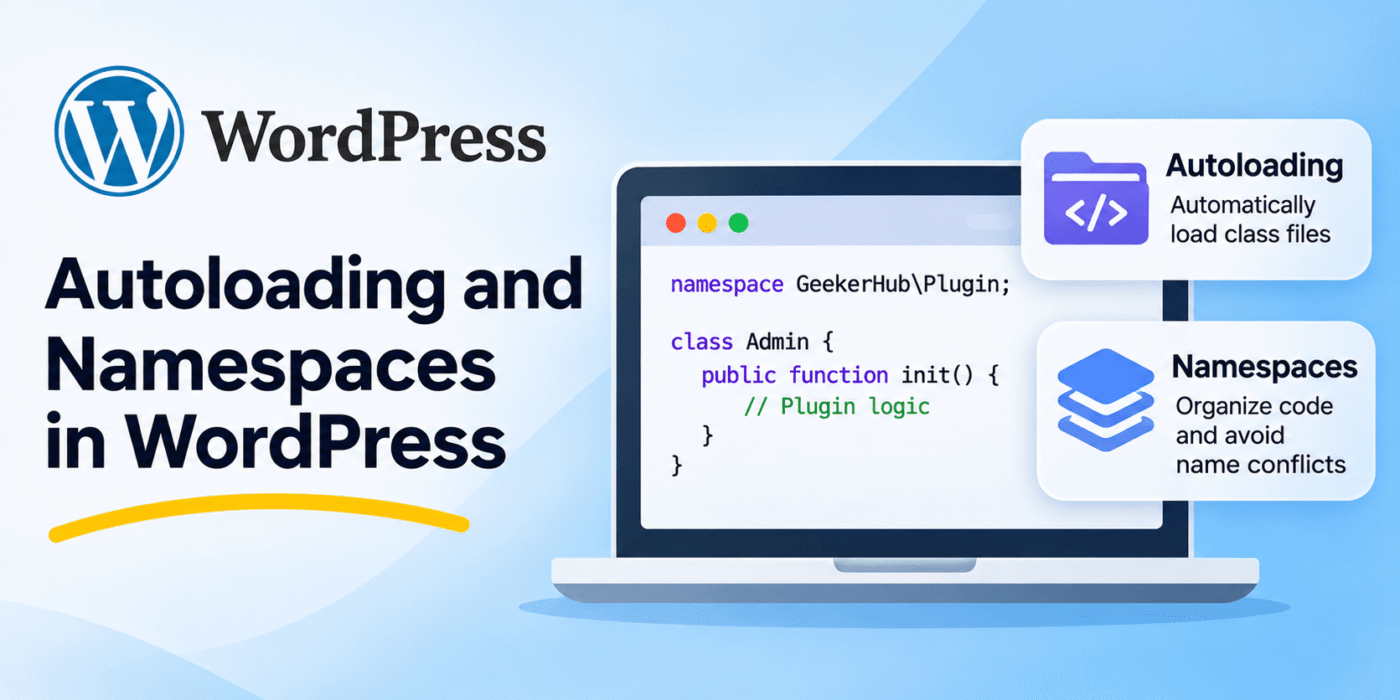
Namespaces help prevent naming conflicts between classes and functions. Autoloading automatically loads class files when they are needed, so you do not have to include every class file manually.
In this tutorial, we will look at how to use PHP namespaces and class autoloading in a WordPress plugin, how to register namespaced functions with WordPress hooks, and how to use WordPress core classes inside a namespace.
1. What Is PHP Autoloading?
Autoloading is a PHP feature that automatically loads a class file when code tries to use a class that has not yet been loaded.
Without autoloading, you may need to include every class file manually:
<?php

require_once plugin_dir_path( __FILE__ ) . 'inc/Admin.php';
require_once plugin_dir_path( __FILE__ ) . 'inc/Frontend.php';
require_once plugin_dir_path( __FILE__ ) . 'inc/Settings.php';

?>
This approach works, but the list of files can become difficult to maintain as your plugin grows.
With autoloading, PHP calls an autoloader when it encounters an undefined class. The autoloader determines which file contains the class and loads it automatically.
PHP provides the spl_autoload_register() function to register an autoloading callback. You can read more in the official PHP autoloading documentation.
2. What Are PHP Namespaces?
A namespace provides a way to organize classes, interfaces, functions, and constants under a specific name.
For example, two WordPress plugins may both contain a class named Settings. Without namespaces, these class names can conflict if both plugins load their classes.
You can avoid this problem by placing each class in a different namespace.
<?php

namespace GeekerHub\Plugin;

class Settings {

    public function init() {
        // Plugin settings logic.
    }
}
Another plugin can use the same short class name under a different namespace:
<?php

namespace AnotherPlugin;

class Settings {

    public function init() {
        // Another plugin's settings logic.
    }
}
Both classes can exist without a naming conflict because their fully qualified class names are different:
GeekerHub\Plugin\SettingsAnotherPlugin\Settings
For more information, see the official PHP namespaces documentation.
3. Create a Simple Autoloader for a WordPress Plugin
Let’s create a basic autoloader for a custom WordPress plugin. In this example, all plugin classes will use the GeekerHub\Plugin namespace and will be stored inside an inc directory.
Use the following folder structure:
geekerhub-plugin/
├── geekerhub-plugin.php
└── inc/
    ├── Admin.php
    ├── Frontend.php
    └── Settings.php
Add the following code to the main plugin file, geekerhub-plugin.php:
<?php
/**
 * Plugin Name: GeekerHub Plugin
 */

namespace GeekerHub\Plugin;

define(
    __NAMESPACE__ . '\PLUGIN_PATH',
    plugin_dir_path( __FILE__ )
);

/**
 * Autoload plugin classes.
 */
spl_autoload_register(
    function ( $class_name ) {

        $prefix = __NAMESPACE__ . '\\';

        // Ignore classes outside this namespace.
        if ( 0 !== strpos( $class_name, $prefix ) ) {
            return;
        }

        // Remove the namespace prefix.
        $class_name = substr(
            $class_name,
            strlen( $prefix )
        );

        // Convert namespace separators into directory separators.
        $class_file = str_replace(
            '\\',
            DIRECTORY_SEPARATOR,
            $class_name
        );

        $file = PLUGIN_PATH . 'inc/' . $class_file . '.php';

        if ( file_exists( $file ) ) {
            require_once $file;
        }
    }
);
This autoloader checks whether the requested class belongs to the GeekerHub\Plugin namespace. If it does, it converts the remaining namespace into a file path and loads the matching PHP file.
For example, the class GeekerHub\Plugin\Admin will be loaded from:
inc/Admin.php
Make sure your class names and file names follow the same naming convention. This simple example uses one class per file and does not provide full PSR-4 support for every possible namespace structure.
4. Create and Load a Class Automatically
Now create an Admin.php file inside the inc directory.
<?php

namespace GeekerHub\Plugin;

class Admin {

    public function init() {

        add_action(
            'admin_menu',
            array( $this, 'register_menu' )
        );
    }

    public function register_menu() {

        add_menu_page(
            'GeekerHub Settings',
            'GeekerHub',
            'manage_options',
            'geekerhub-settings',
            array( $this, 'render_page' )
        );
    }

    public function render_page() {

        echo '<div class="wrap">';
        echo '<h1>GeekerHub Settings</h1>';
        echo '</div>';
    }
}
You can now create an instance of the class from the main plugin file:
<?php

$admin = new Admin();

$admin->init();
Because the class belongs to the same namespace as the autoloader, PHP automatically loads inc/Admin.php when the class is first used.
You do not need to write a separate require_once statement for this class.
5. Use Namespaced Functions with WordPress Hooks
WordPress hooks allow developers to register functions and methods using add_action() and add_filter().
When you define a function inside a namespace, you need to provide its fully qualified name when registering it as a callback.
For example:
<?php

namespace GeekerHub\Plugin;

function modify_content( $content ) {

    return $content . '<p>Added by GeekerHub plugin.</p>';
}

add_filter(
    'the_content',
    __NAMESPACE__ . '\modify_content'
);
The __NAMESPACE__ magic constant returns the current namespace. It helps you register the correct function name without manually writing the full namespace every time.
This is especially useful when your plugin contains several namespaced functions.
6. Register Class Methods with WordPress Hooks
You can also register class methods as WordPress hook callbacks. This is a common approach when building object-oriented plugins.
For example, create a class with an initialization method:
<?php

namespace GeekerHub\Plugin;

class Plugin {

    public function __construct() {

        add_action(
            'plugins_loaded',
            array( $this, 'loaded' )
        );
    }

    public function loaded() {

        // Plugin initialization logic.
    }
}

new Plugin();
Here, array( $this, 'loaded' ) registers the loaded() method of the current object as the callback.
You can also use static methods as callbacks. In that case, pass the fully qualified class name and the method name:
<?php

namespace GeekerHub\Plugin;

class Plugin {

    public static function init() {

        add_action(
            'plugins_loaded',
            array( __CLASS__, 'loaded' )
        );
    }

    public static function loaded() {

        // Static initialization logic.
    }
}

Plugin::init();
The __CLASS__ magic constant returns the fully qualified class name, including its namespace.
7. Use WordPress Core Classes Inside a Namespace
WordPress core classes such as WP_Widget belong to the global namespace. When you use them inside your own namespace, PHP needs to know that you are referring to the global class.
You can do this in two ways.
Option 1: Use the use Statement
<?php

namespace GeekerHub\Plugin;

use WP_Widget;

class MyWidget extends WP_Widget {

    // Widget functionality.
}
Option 2: Use the Fully Qualified Class Name
You can prefix the WordPress class name with a backslash to refer directly to the global namespace.
<?php

namespace GeekerHub\Plugin;

class MyWidget extends \WP_Widget {

    // Widget functionality.
}
Both approaches are valid. The use statement can make your code easier to read when you work with several WordPress core classes.
8. Define Plugin Constants Inside a Namespace
You may need constants to store plugin information, such as a plugin path or version number.
When using the PHP define() function, the constant name is a string. It is not automatically placed inside the current namespace.
You can create a namespaced constant by including the namespace in its name:
<?php

namespace GeekerHub\Plugin;

define(
    __NAMESPACE__ . '\PLUGIN_PATH',
    plugin_dir_path( __FILE__ )
);
You can then access it using:
<?php

$file = PLUGIN_PATH . 'inc/Admin.php';
PHP also supports the const keyword for declaring constants inside a namespace:
<?php

namespace GeekerHub\Plugin;

const PLUGIN_VERSION = '1.0.0';
Unlike define(), a constant declared with const must use a constant expression. You cannot use a function call such as plugin_dir_path() as its value.
9. Consider Using Composer for Larger WordPress Projects
The custom autoloader shown above is useful for a small plugin with a simple class structure. If your project contains many classes or follows a standard namespace and directory convention, Composer can manage autoloading for you.
Composer supports PSR-4 autoloading, which maps namespaces to directories.
For example, create a composer.json file in your plugin directory:
{
    "autoload": {
        "psr-4": {
            "GeekerHub\\Plugin\\": "inc/"
        }
    }
}
Run the following command from your plugin directory:
composer dump-autoload
Then load Composer’s generated autoloader from your main plugin file:
<?php

require_once __DIR__ . '/vendor/autoload.php';
Composer will automatically load classes that follow the configured PSR-4 namespace and directory structure. For larger projects, this is usually easier to maintain than writing your own class loader.
Read the official Composer autoloading documentation for more details.
Important Notes
- Use a unique namespace: Choose a namespace related to your plugin or theme to reduce naming conflicts.
- Follow a consistent file structure: Keep class names and file paths consistent with your autoloader’s rules.
- Register the autoloader once: Avoid registering duplicate autoloaders for the same namespace.
- Use fully qualified callback names: Namespaced functions need their correct namespace when registered with WordPress hooks.
- Use global WordPress classes correctly: Import core classes with a
usestatement or prefix them with a backslash. - Check file paths: Make sure the autoloader checks that a file exists before requiring it.
- Choose the right approach: A simple custom autoloader may be enough for a small plugin, while Composer is useful for larger projects.
Conclusion
PHP namespaces and autoloading help keep WordPress themes and plugins organized as they grow. Namespaces reduce class and function naming conflicts, while autoloading removes the need to include every class file manually.
You can create a simple autoloader with spl_autoload_register() or use Composer’s PSR-4 autoloading for larger projects. You can also register namespaced functions and class methods with WordPress hooks using fully qualified callback names.
Using these techniques makes your plugin code easier to maintain and gives you a cleaner structure for future development.